
Xamarin.Forms – Netflix
Hello, Today, I will try to make Netflix mobile application design using Xamarin.Forms. Netflix is the one of the most popular application nowadays and I think Netflix has a elegant mobile design. Thanks to Xamarin.Forms, I can make the design same time in the iOS and Android platforms.
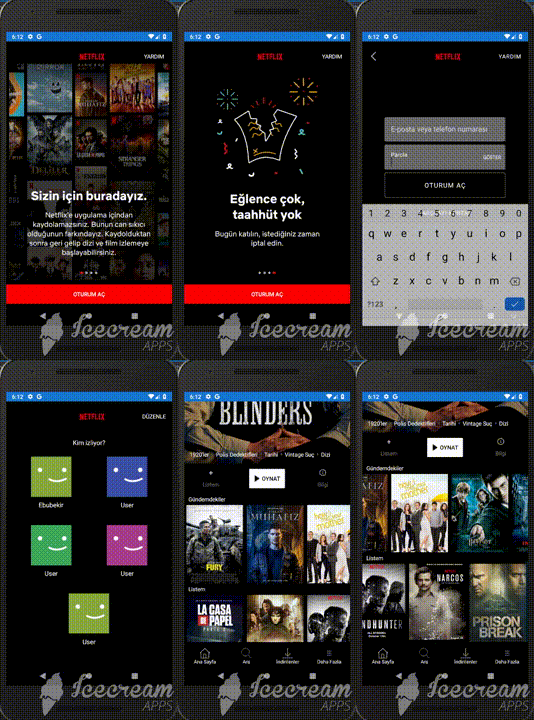
Firstly, I opened the Xamarin.Forms project and I tried to make 4 screens of the Netflix. When we opened the Netflix, we see that there is an Introduction page so i started to the make Introduction Page. I use the Carousel View inside of the page to make same screen and for the Carousel View, I install a nuget package.
        <carousel:CarouselViewControl Grid.Row="0"
                                      x:Name="myCarouselView"
                                      VerticalOptions="FillAndExpand"
                                      HorizontalOptions="FillAndExpand"
                                      IndicatorsShape="Circle"
                                      IndicatorsTintColor="DarkGray"
                                      CurrentPageIndicatorTintColor="Red"
                                      ShowIndicators="True"
                                      ItemsSource="{Binding .}">
            <carousel:CarouselViewControl.ItemTemplate>
                <DataTemplate>
                    <Grid>
                        <Grid.RowDefinitions>
                            <RowDefinition Height="Auto"/>
                        </Grid.RowDefinitions>
                        <Image Source="{Binding IntroBackground}"
                               Grid.Row="0"
                               VerticalOptions="FillAndExpand"
                               HorizontalOptions="FillAndExpand"
                               Aspect="AspectFit"/>
                    </Grid>
                </DataTemplate>
            </carousel:CarouselViewControl.ItemTemplate>
        </carousel:CarouselViewControl>
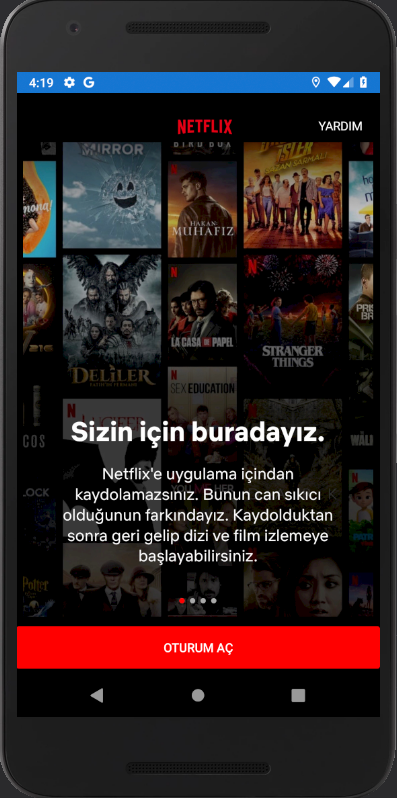
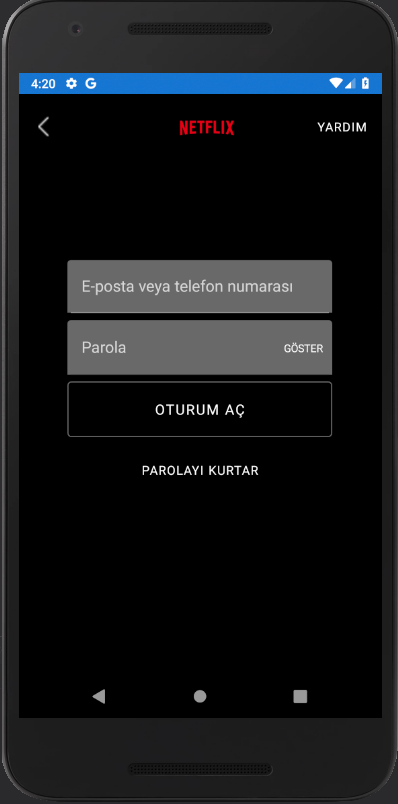
After the Introduction Page, we see that Login Page. In the Login Page, we have 2 Entry and 2 Button. For the Entries, I use Material Designs.
                <Entry Grid.Row="1"
                   FontSize="16"
                   TextColor="White"
                   PlaceholderColor="White"
                   VerticalOptions="Center"
                   HorizontalOptions="Center"
                   WidthRequest="300"
                   Placeholder="E-posta veya telefon numarası"
                   BackgroundColor="DimGray"/>
                <Grid HorizontalOptions="FillAndExpand"
                      Grid.Row="2"
                      VerticalOptions="CenterAndExpand">
                    <Entry  HorizontalOptions="FillAndExpand"
                           Placeholder="Parola"
                        PlaceholderColor="White"
                        BackgroundColor="DimGray"
                        WidthRequest="300"
                           IsPassword="True"
                           VerticalOptions="Center"/>
                    <Label Text="GÖSTER"
                        BackgroundColor="Transparent"
                        TextColor="White"
                        FontSize="12"
                           HorizontalOptions="End"
                           Margin="0,0,10,0"
                           VerticalOptions="Center">
                    </Label>
                </Grid>
                <Button BorderColor="DimGray"
                    BorderWidth="10"
                    BackgroundColor="#0D0D0D"
                    WidthRequest="250"
                    Text="Oturum Aç"
                    FontSize="16"
                    TextColor="White"
                    Clicked="Button_Clicked"
                    Grid.Row="3"/>
                <Button BackgroundColor="#0D0D0D"
                    WidthRequest="150"
                    Text="Parolayı Kurtar"
                    FontSize="14"
                    TextColor="White"
                    Grid.Row="4"/>
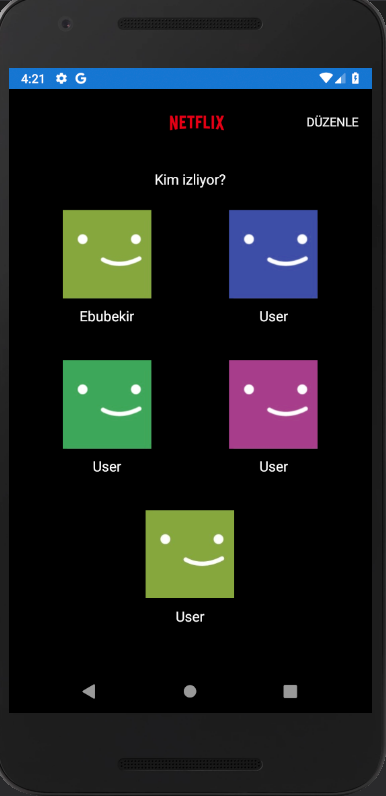
After the Login Page, we see that User Page. It is a really simple screen to make. I add the pics and label of the users and our job is done.
Finally, we have Home Page. In the home page, we have a movie introduction and categories of the movies. By looking at the design, I try to make same design. I used Collection View for the catagories and orientation of the collection view is horizontal.
  <Label Text="Gündemdekiler"
                   TextColor="White"
                   Margin="10,5,0,0"
                   VerticalOptions="Fill"
                   HorizontalOptions="Start"
                   FontSize="14"/>
            <CollectionView ItemsSource="{Binding .}"
                             HeightRequest="200"
                            VerticalOptions="FillAndExpand"
                            HorizontalOptions="Center"
                            ItemsLayout="HorizontalList"
                            x:Name="lstMovieCollection">
                <CollectionView.ItemTemplate>
                    <DataTemplate>
                        <StackLayout HeightRequest="150"
                                         WidthRequest="150">
                            <Image Source="{Binding MovieImage}"
                                   Margin="5"
                                   Aspect="AspectFit"
                                   VerticalOptions="Fill"
                                   HorizontalOptions="Fill"/>
                        </StackLayout>
                    </DataTemplate>
                </CollectionView.ItemTemplate>
            </CollectionView>
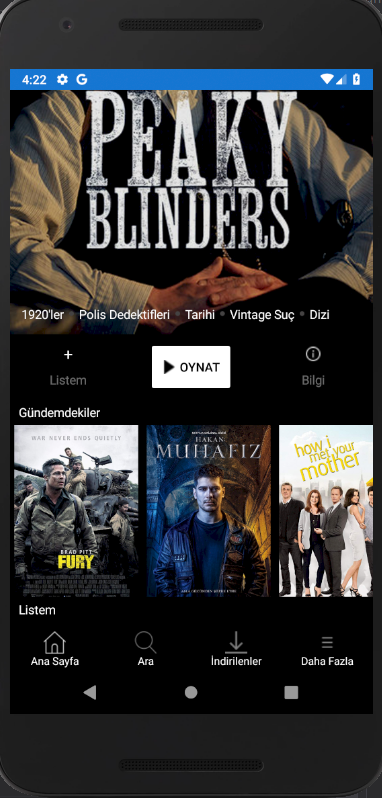
You can reach the project by clicking here. Here is the output of the project;
You can ask your questions via e-mail or comments.